Setup guide
How to translate your screen on iPhone or iPad
Five steps, about two minutes, once — and they are the same on iPhone and iPad. After that you never open TapTranslate to translate — you double-tap.
-
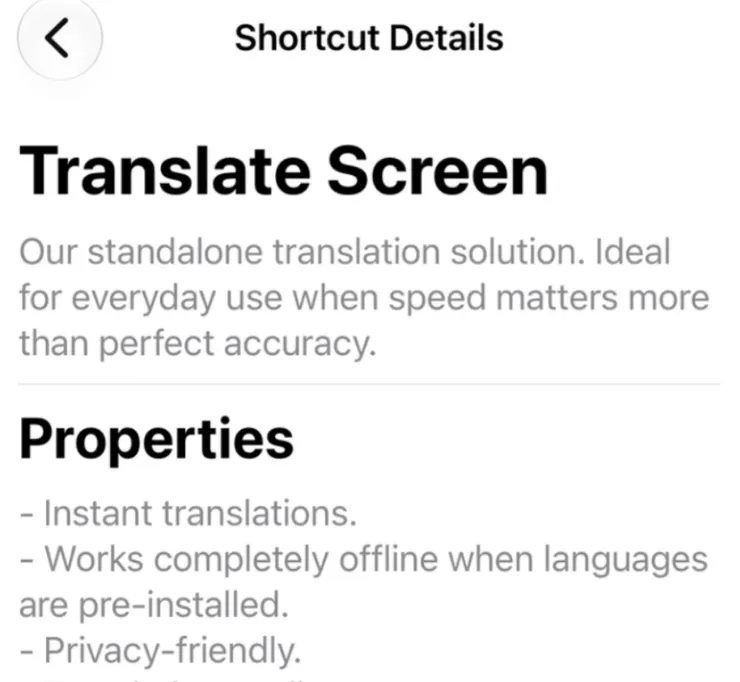
1In TapTranslate, open Shortcuts and add one.
-
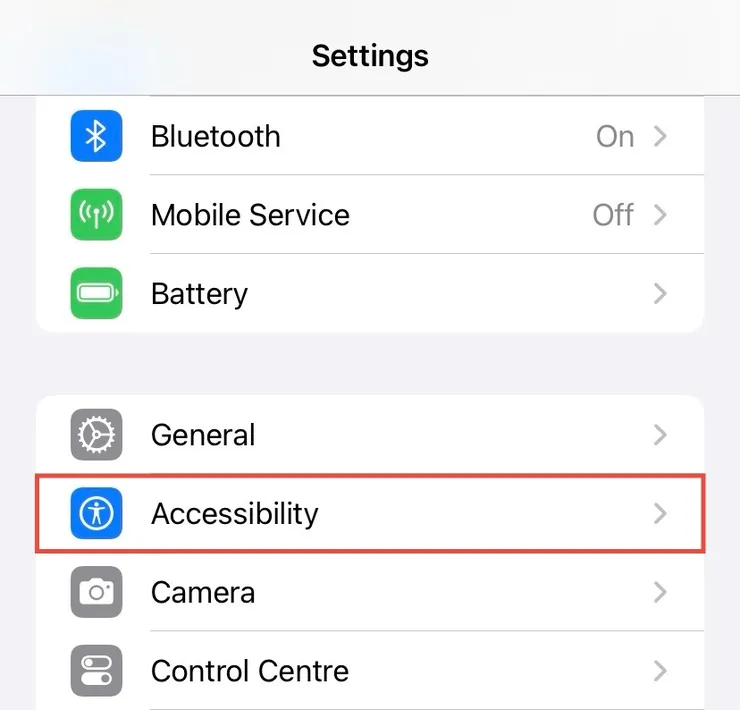
2Open Settings → Accessibility.
-
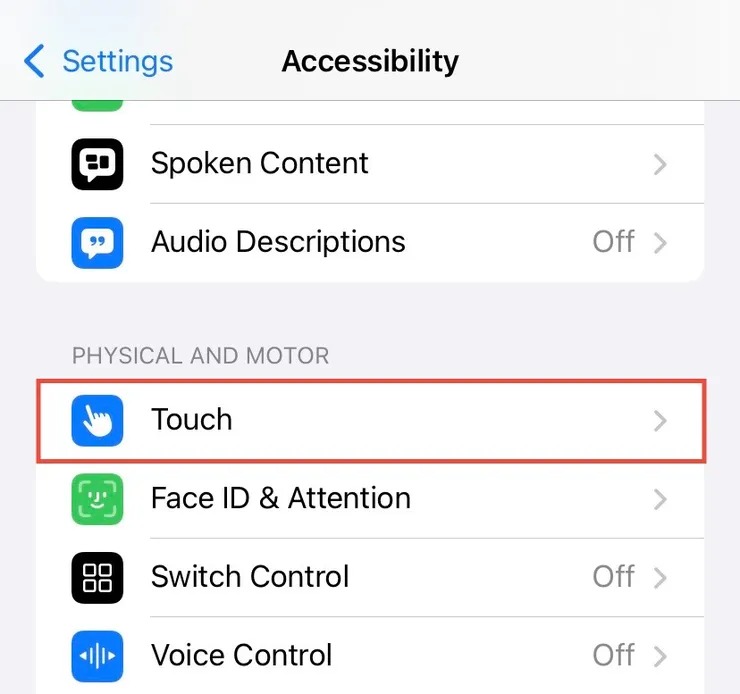
3Under Physical and Motor, open Touch.
-
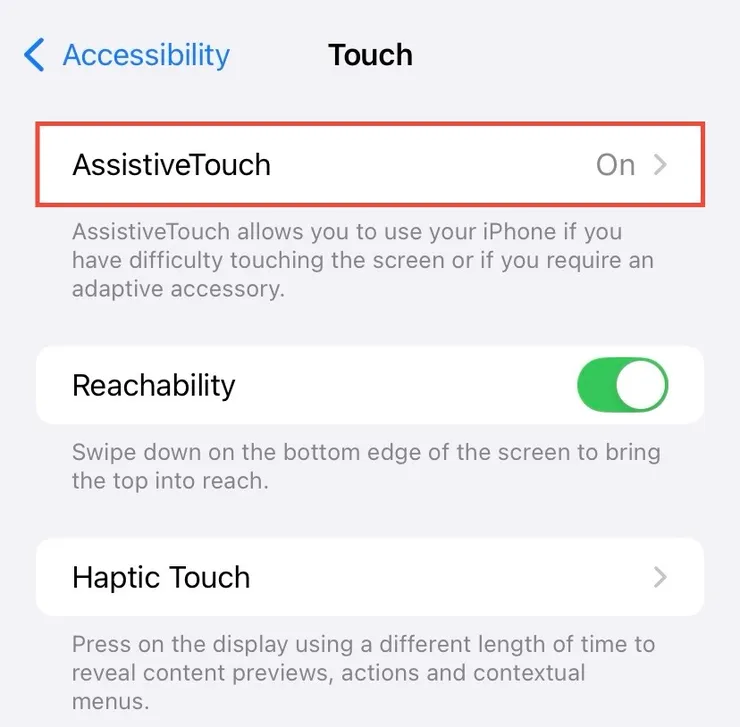
4Open AssistiveTouch and switch it on.
-
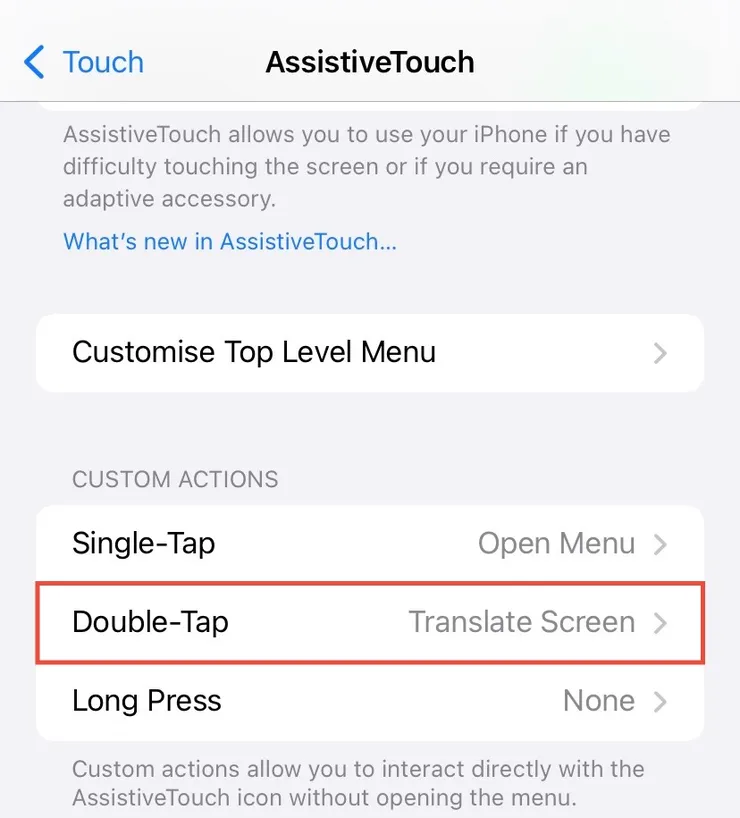
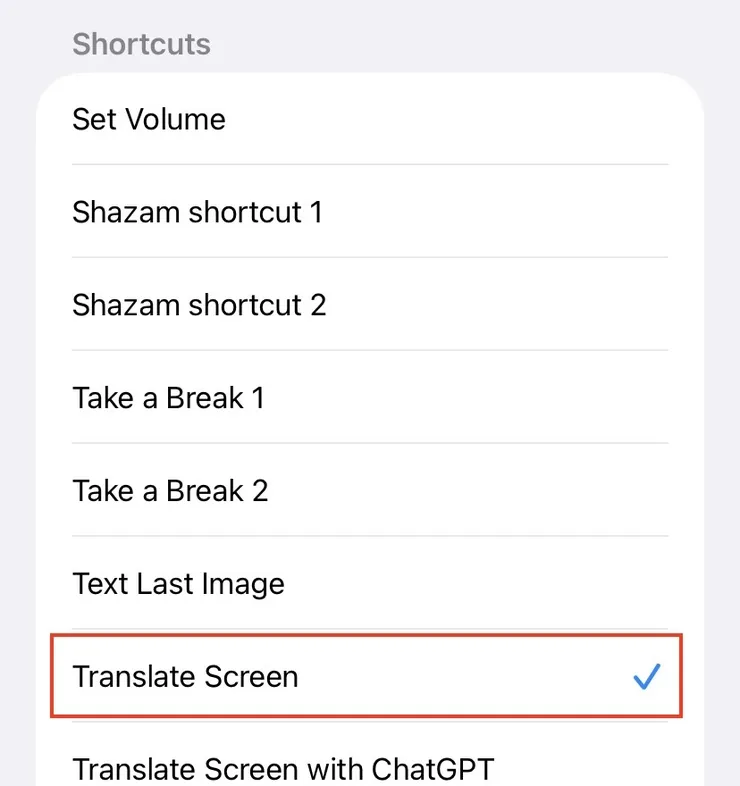
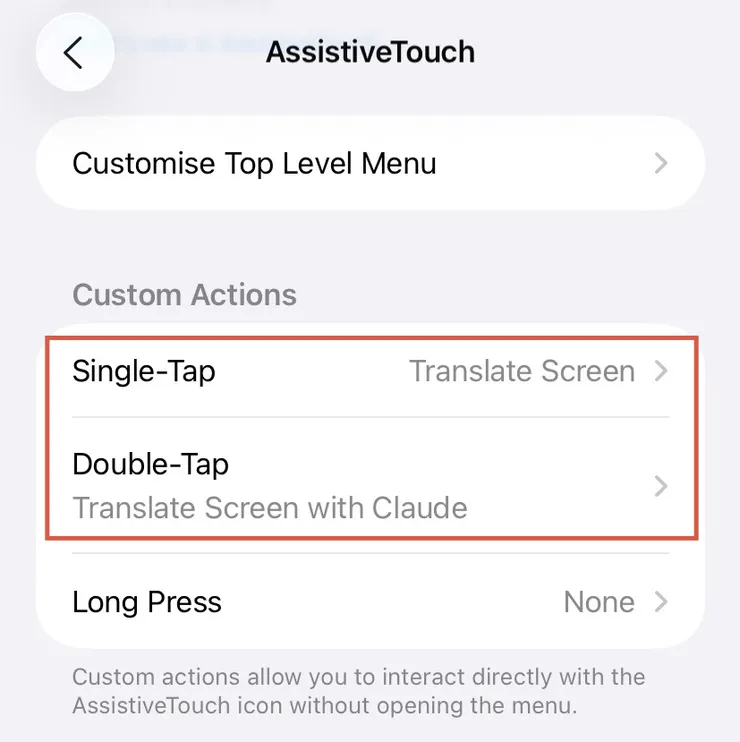
5Under Custom Actions, open Double-Tap and pick your shortcut.
-
✓Done.
Double-tap that floating button on any screen — a web page, a game, a PDF, a chat — and the translation is drawn over the original, in place.
The first run asks permission to share data between the apps involved, sometimes more than once. Choose Always Allow and it stops asking.
On iPad
Same path, same five steps.
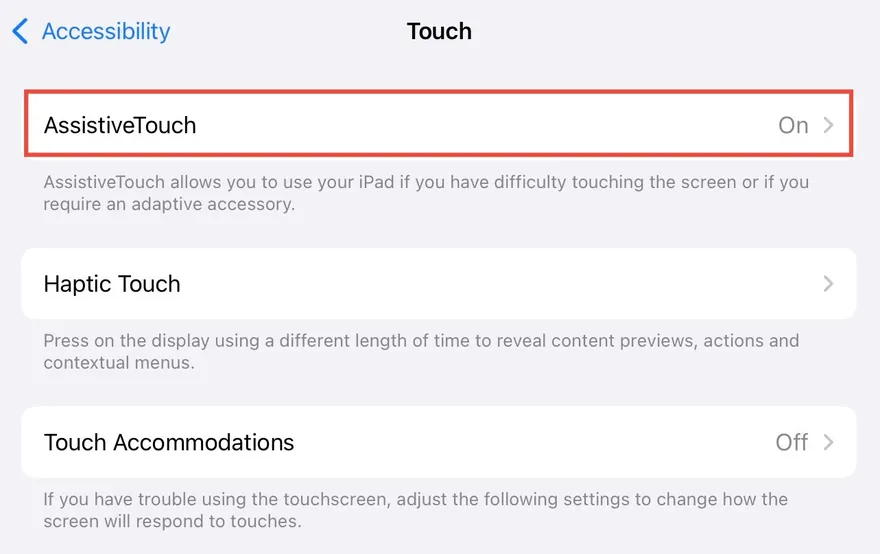
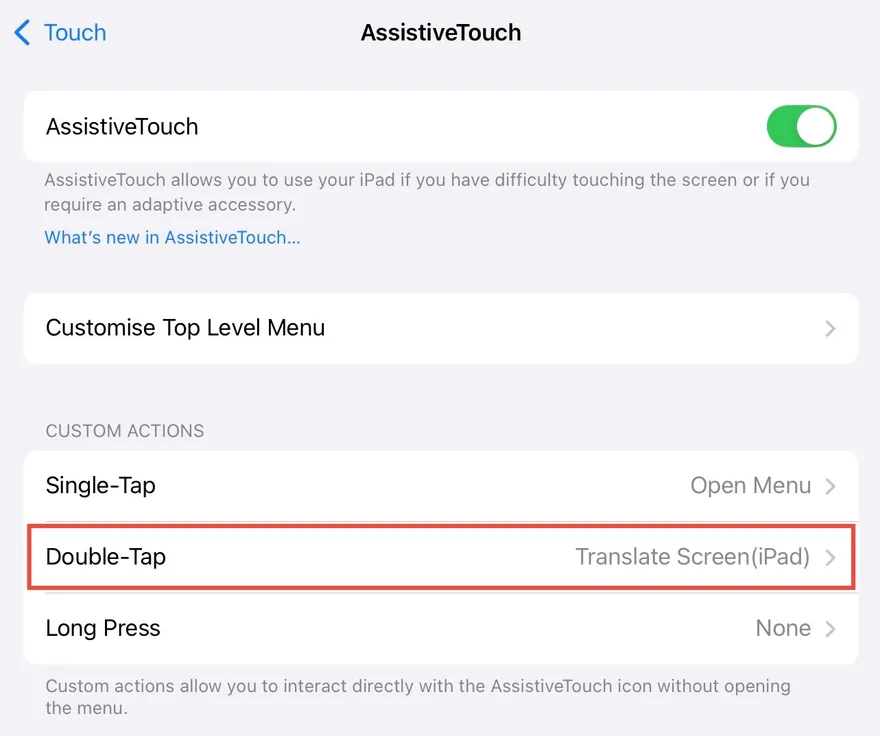
Settings → Accessibility → Touch → AssistiveTouch → Double-Tap, exactly as above. One difference worth knowing: TapTranslate ships an iPad build of each shortcut and only offers the ones that match the device you are on — so add the shortcut from the app on the iPad itself rather than reusing the iPhone one. You will see it listed with an (iPad) suffix.
Results always open full screen on iPad; the floating sheet is an iPhone mode.
Worth doing
Put both modes on different taps.
Custom Actions has Single-Tap, Double-Tap and Long Press. Add both shortcuts and assign one to each: the fast offline one for a quick glance, the AI one when the phrasing matters.
Good to know
Making it work offline
The on-device shortcut is fully offline once the language pairs are installed. Pre-download them in More → Installed Languages; otherwise iOS prompts you mid-translation the first time you use a pair.
With automatic language detection on, the app cannot know in advance which pair a screenshot needs, so it cannot promise offline operation. Set the source language by hand if being certain matters.
Turning on AI mode
The ChatGPT shortcut needs three things in place:
- Apple Intelligence on, in Settings → Apple Intelligence & Siri
- ChatGPT on, in Settings → Apple Intelligence & Siri → Extensions
- The ChatGPT app installed, signed in, and left running in the background
Apple Intelligence needs a supported device and a recent iOS, so this mode does not appear for everyone. When the chatbot fails or times out, the shortcut falls back to on-device translation rather than giving you nothing.
Floating result, or full screen
Floating screen shows the result in a compact sheet without opening TapTranslate — fastest, fewer controls, iPhone-only. Full screen launches the app and gives you zoom, copy, save and the toggle back to the original. Switch in More → UI, which is also where the overlay's colours, stroke, bounding boxes and minimum text scale live.
Updating a shortcut
Shortcuts get revised, and an old copy keeps running the old logic. Check yours under Shortcuts → Check Version. To reinstall: delete the old one in the Shortcuts app, re-add the current one from TapTranslate, then reattach it to Double-Tap — the old assignment points at the copy you deleted.
What the errors mean
| Message | What to do |
|---|---|
| “Open the app to activate your free trial.” | Open TapTranslate once and start the trial. No charge unless you buy. |
| “Your free trial has expired.” | Lifetime access is a single $3.99 purchase — no subscription. |
| “The language […] needs to be downloaded.” | Add that pair in More → Installed Languages. |
| “The interactive result can't be shown…” | Turn on Open When Run for that action in the Shortcuts app, or switch to floating results in More → UI. |
| “This shortcut is outdated.” | Reinstall it — see “Updating a shortcut”. |
| “No text was detected.” | Check the source language. Auto-detection reads one language per screen and can guess wrong on mixed or non-Latin text. |
Why a shortcut instead of just an app
No app on iOS can read another app's screen. Shortcuts can take a screenshot and hand it to an app — so that is the route TapTranslate takes, which is why the translation can appear over the app you were already in. AssistiveTouch is the trigger because its Double-Tap runs a shortcut from anywhere, games and full-screen video included. On iPhone 8 and later, Settings → Accessibility → Touch → Back Tap works too, if you would rather not have a floating button on screen.
Still stuck? Email support — the app's Get Support screen attaches the details that make a problem diagnosable.